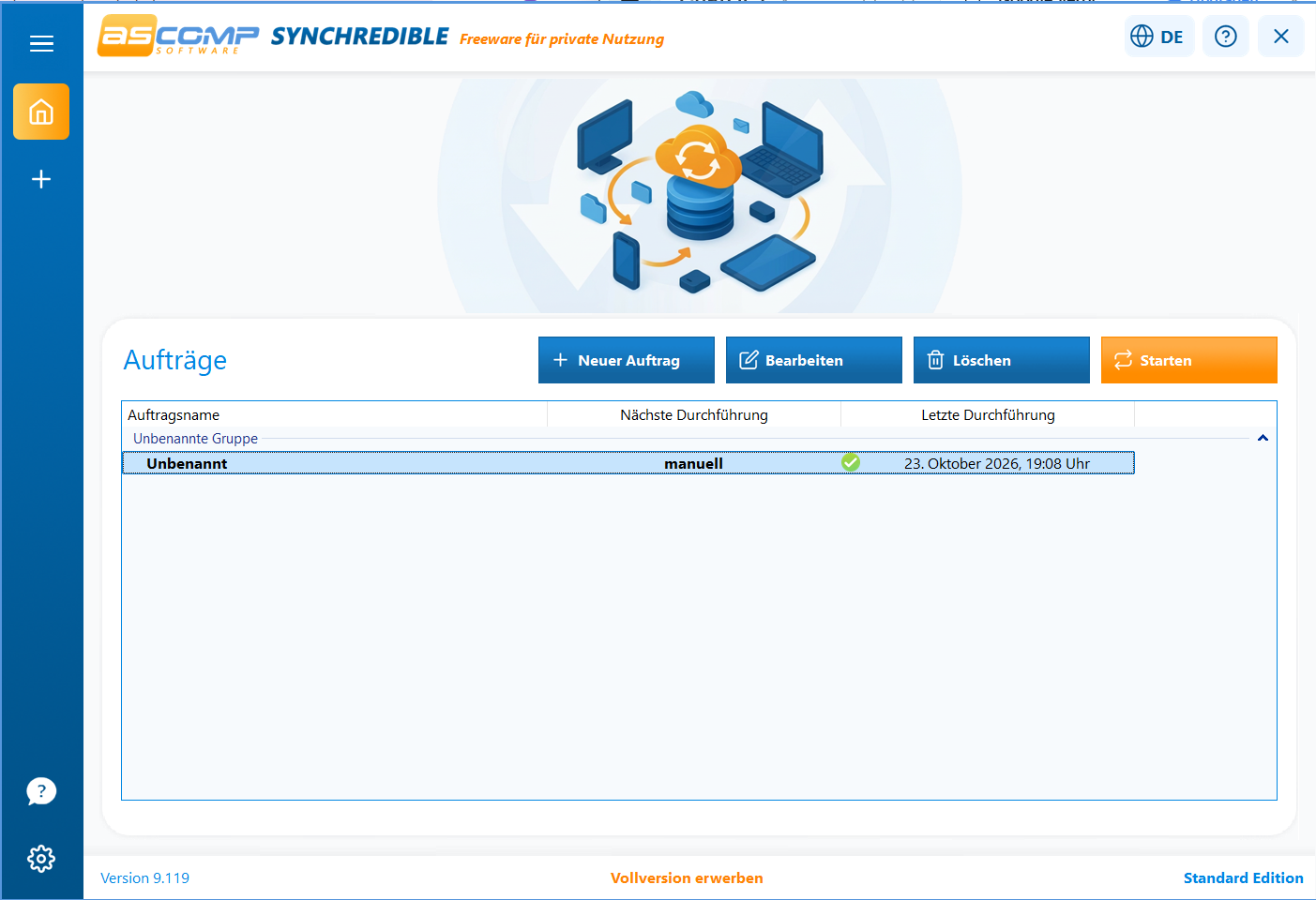
If you regularly need to sync files between two folders or automatically copy important documents, synchronization software can save you a lot of manual work. One such solution is Synchredible from ASCOMP. This Windows program allows you to sync files and folders and automatically run synchronization jobs.
I put Synchredible to the test. I synchronized files and subfolders between two directories in one direction and also tested the automatic execution feature. In this review, I’ll show how the software performs these tasks and who might find it useful.
What is Synchredible?
Synchredible is synchronization and backup software for Windows. The program helps you synchronize files between selected locations, such as between two folders on a computer or between different drives.
According to the manufacturer, synchronization tasks can be started not only manually but also automated. Depending on the configuration, for example, scheduled tasks or execution triggered by specific events are possible. In addition, the software supports various synchronization options.
The application is therefore aimed at users who want to keep their files up to date regularly without having to copy them manually each time.
Setup: An Intuitive Start
In my hands-on test, the setup process went smoothly. I found the interface easy to use and intuitive. I was able to set up a synchronization task without having to delve deeply into all the features right away.
For my test, I selected two folders and set up one-way synchronization. In this setup, one folder serves as the source, while the files are transferred to the other folder.
This distinction is important: With one-way synchronization, changes aren’t automatically synchronized in both directions. For example, if you want to copy documents from a work folder to a second folder, this covers a suitable use case.
The Practical Test: Synchronizing Files and Subfolders
For the practical test, I synchronized files and subfolders between two directories. The result was positive: The synchronization worked as intended, and the files were transferred correctly.
This allowed me to successfully verify the software’s basic functionality. Especially with a larger folder structure, it’s helpful not to have to copy every file individually. Instead, the synchronization can be organized via a scheduled task.
In my test, the focus was on correct transfer and ease of use. I did not conduct a comprehensive performance test with very large amounts of data or a comparison with other synchronization programs. Therefore, no general conclusions about speed with data sets of any size can be drawn from this test.
One-way synchronization: When is it useful?
One-way synchronization is particularly useful when files need to be made available from a source folder to a second location. This can be helpful, for example, with work documents, project data, or an additional copy of a file.
The selected synchronization direction should always be set deliberately. Depending on the configuration, changes or deletions can affect the destination folder. Before using the program with important data, it is therefore recommended to carefully review the options and first test the process with non-critical test files.
It is also important to distinguish between synchronization and backup: A second copy of a file does not automatically protect against every form of data loss. If unwanted changes or deletions are applied, the second copy may also be affected. For important data, a well-thought-out backup strategy is therefore advisable.
Testing Automatic Synchronization
In addition to manual execution, I also tested automatic synchronization. This worked in my test as well.
This is a practical advantage when certain folders need to be synced regularly. Once a corresponding task has been set up, the process doesn’t have to be initiated manually from scratch every time. This can simplify recurring tasks and reduce the risk of forgetting a scheduled sync.
Which automation option is best depends on the specific use case and configuration. According to the manufacturer, Synchredible offers various ways to run synchronizations automatically. In my hands-on test, I successfully verified the automatic execution; however, I did not conduct a comprehensive comparison of all automation options.
What other features does Synchredible offer?
In addition to the one-way synchronization I tested, ASCOMP lists other features. These include, among others:
- Bidirectional synchronization: Changes can be synchronized between two locations in both directions.
- Scheduled execution: Synchronization jobs can be started according to a schedule.
- Real-time monitoring: Depending on the settings, a synchronization can be triggered by changes.
- Support for various storage locations: According to the manufacturer, these include local drives, external storage media, and network storage, among others.
- Filters and additional options: The software offers further configuration options for setting up synchronization jobs.
These features are taken from the manufacturer’s product description and have not all been individually tested by me. Therefore, anyone who needs a specific feature should check in advance whether it is compatible with their own Windows environment and intended use.
Further information is available on ASCOMP’s official Synchredible product page.
Advantages and Disadvantages
Based on my limited hands-on testing, the following picture emerges.
Advantages
- Intuitive and simple setup
- Files and subfolders synchronized correctly
- One-way synchronization between two folders is possible
- Automatic execution worked during testing
- Convenient for recurring synchronization tasks
Disadvantages and Limitations
- Extensive additional features require closer examination depending on the use case.
- One-way synchronization is not the same as bidirectional synchronization.
- The test did not include a systematic measurement of speed when handling large amounts of data.
- Its effectiveness as a complete backup solution depends on the configuration and a complementary backup strategy.
The limitations mentioned do not imply that the software performs poorly in these areas. Rather, they indicate which aspects I did not thoroughly test as part of my evaluation.
Who should consider Synchredible?
Synchredible is worth checking out if you need to regularly synchronize or automatically copy files and folders on Windows. It can be particularly helpful for users with recurring tasks to set up a synchronization job once and then have it run automatically.
For simple one-way syncs, my test provides a positive foundation: The setup was straightforward, the files and subfolders were transferred correctly, and the automation worked as intended.
However, anyone looking for a comprehensive backup solution for business-critical data should also check what requirements exist regarding versioning, recovery, and protection against accidental deletion. These aspects were not covered in my hands-on test.
Conclusion: Simple synchronization that worked in the test
Synchredible made a good impression in my hands-on test. Setup was simple and straightforward, one-way synchronization of files and subfolders worked correctly, and automatic execution was also successfully tested.
This makes the program generally suitable for users who want to simplify recurring synchronization tasks on Windows. The software’s other features are interesting, but I did not test them thoroughly.
More information and download: ASCOMP Synchredible
[…] Synchredible Review: Synchronizing Files and Folders on Windows […]